
VCF Extension Network Insight: Using the GUI
Version: 2026.1.1.0
The VCF Extension Network Insight GUI is used entirely from the browser. It always shows a plan before it writes anything to NSX, and it never creates blocking rules. This section walks through a rollout from an empty environment to a finished policy that the Management Pack then monitors.
Tagging the machines in vCenter
A rollout starts in vCenter, before the GUI is opened. The GUI does not guess which machine belongs to which application; it reads the tags that are set. A machine with no tags is invisible to it, and a machine with incomplete tags is reported, never silently skipped.
Create two tag categories in vCenter, both with cardinality "one tag per object":
| Category | Example values | Purpose |
|---|---|---|
| application | CRM, BILLING, ERP | the application the machine belongs to. Short, uppercase, no spaces |
| tier | WEB, APP, DB, INT | the role the machine plays inside the application |
Cardinality has to be single: with multiple tags a machine can belong to two applications and ends up on hold instead of being segmented, and it cannot be changed later. The category names are a setting, so the names already used in the organisation can be entered on the Settings tab.
Environment and access
Everything the GUI reaches is opened outbound; nothing connects back to it except the administrator browser.
| Direction | From | To | Port | What for |
|---|---|---|---|---|
| outbound | the GUI | vCenter | 443 | machines, tags, addresses |
| outbound | the GUI | NSX Manager | 443 | reading and writing DFW policy, groups, services |
| outbound | the GUI | Aria Operations for Networks | 443 | flows |
| outbound | the GUI | Aria Operations for Logs | 9543 | DFW logs used by the Management Pack |
| inbound | administrator browser | the GUI | 8443 | the interface (443 behind an ingress) |
Two ports people get wrong: Aria Operations for Logs answers on 9543 only (on 443 it returns an error that looks like a wrong password), and vRNI is on plain 443 like vCenter and NSX. The accounts need least privilege: vCenter read plus tag assignment, an NSX local account (Auditor to plan, Security Engineer to write), a vRNI account with its domain suffix such as admin@local, and a local Aria Logs account.
First configuration
After signing in, open the Settings tab:
- System addresses: type the host name or IP only; the GUI adds the scheme and the port itself, including 9543 for Aria Logs.
- Test connections: every system is checked and reported separately, so a failing account is identified immediately.
- Tag taxonomy: enter the tag category names used in vCenter and the list of allowed tiers.
- Naming convention: templates for group and rule names, with a live preview.
- Save the settings.
Applications
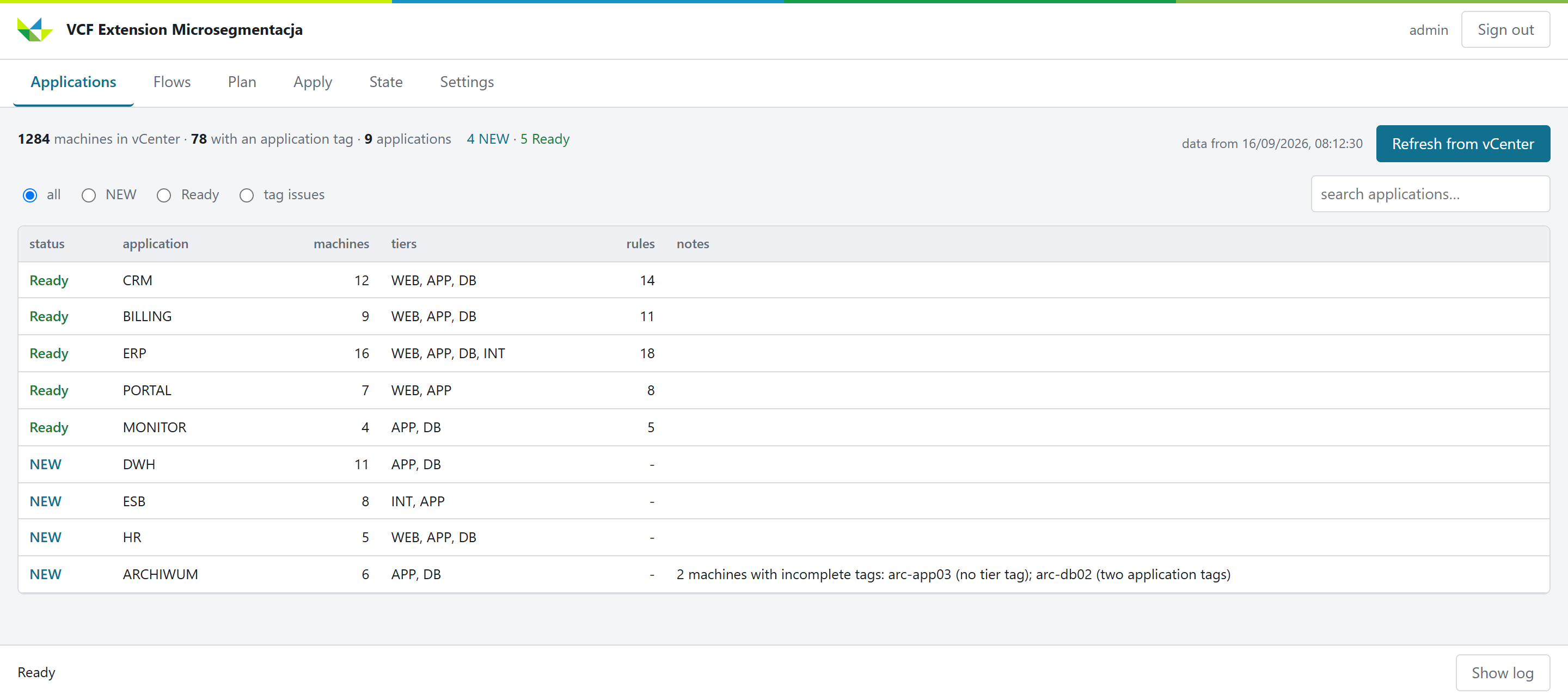
The Applications tab lists every application found in vCenter: how many machines it has, its tiers, how many rules already exist, and any tag problems. An application is either NEW (nothing of ours in NSX yet) or Ready (the policy exists with detailed rules). Machines with incomplete tags are called out here so they can be fixed before segmenting.
Flows
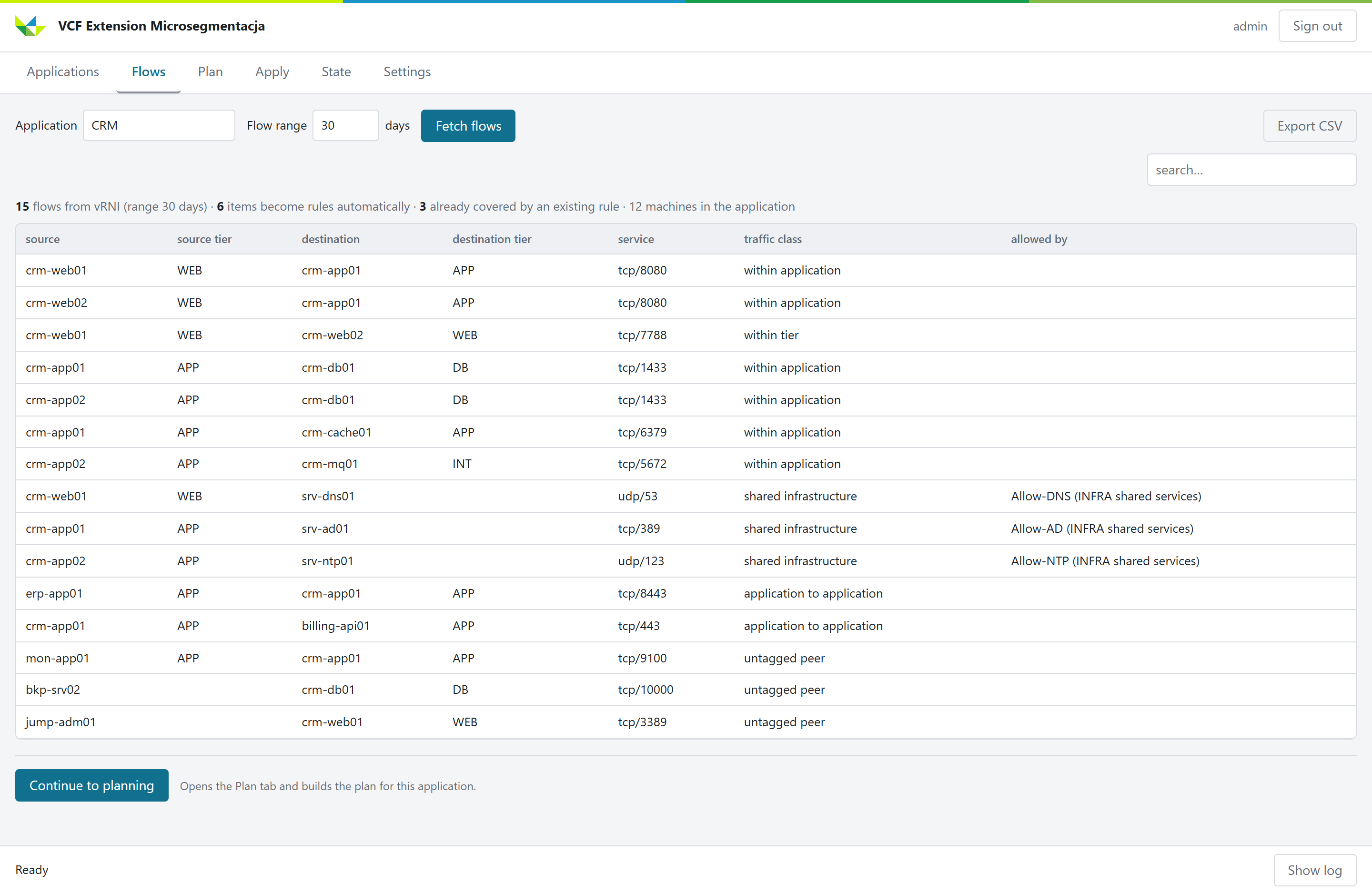
The Flows tab pulls the real traffic for one application from Aria Operations for Networks: source and tier, destination and tier, the service, the traffic class, and which existing rule already allows it. Traffic inside the application becomes rules automatically; traffic to shared services or to other applications is set aside for a decision.
Plan
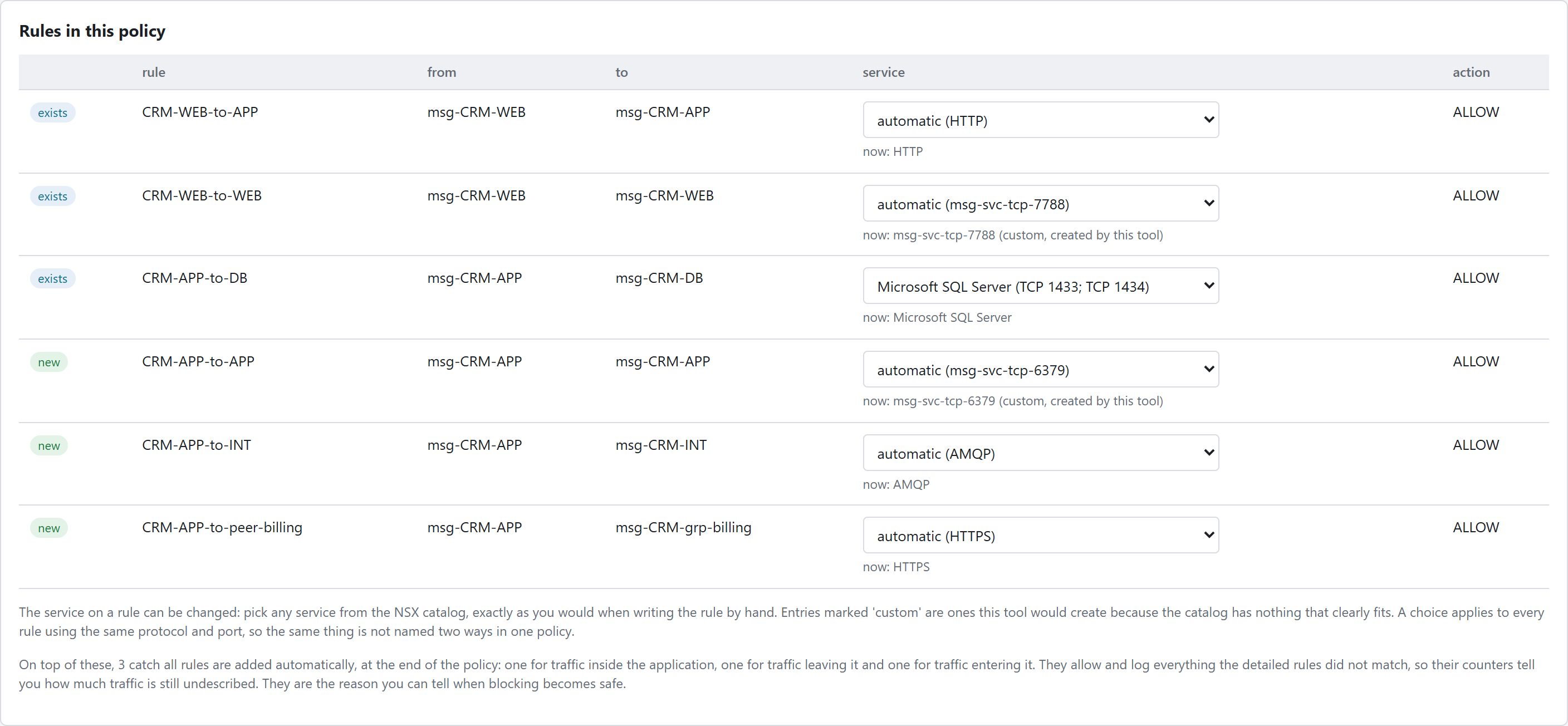
The Plan tab shows the rules that will be in the policy. Each rule marks whether it already exists or is new, and the NSX service on it can be changed: it is chosen from the same NSX service catalog used by hand, and an entry marked "custom" is one the GUI would create because the catalog has nothing that fits. Three catch-all rules are added automatically at the end of the policy, allowing and logging whatever the detailed rules did not match, so their counters show how much traffic is still undescribed.
Traffic the GUI may not decide on its own appears in the same tab as a list with a yes and a no on each row: traffic to another application, to a shared service, or from a machine with no tags. Any number of rows can be settled and saved together.
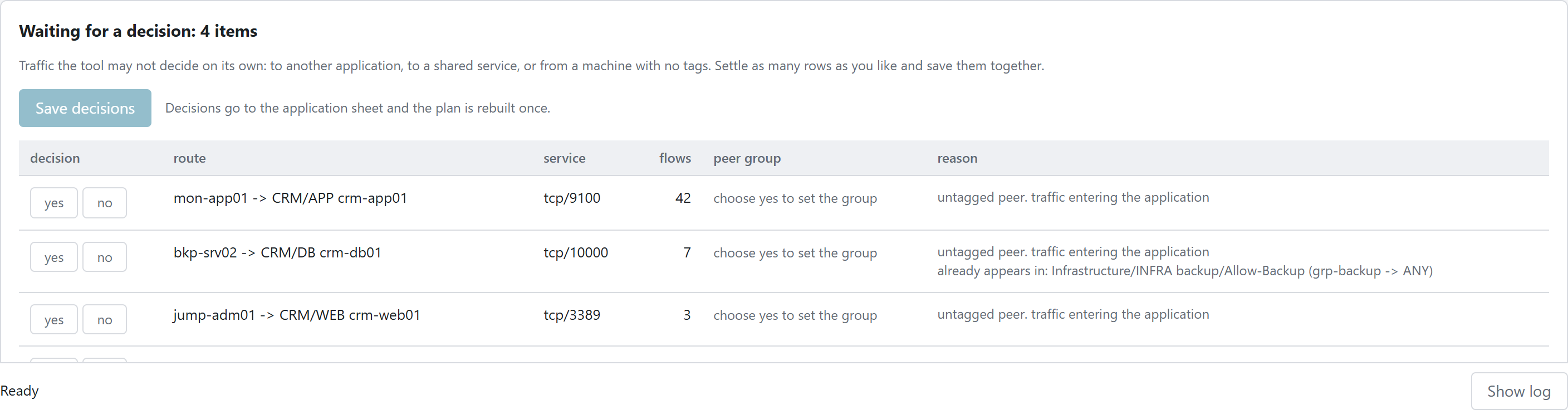
Choosing yes for traffic to a machine outside the application asks what the rule should point at: a new group whose members are named, or an existing group that already contains that machine. The approved rows become rules; the ones already handled elsewhere are listed as covered.


Apply
The Apply tab writes the plan to NSX: the groups, the rules and the catch-all rules. It stays disabled until a plan has been built, and confirmation requires typing the application name.
State
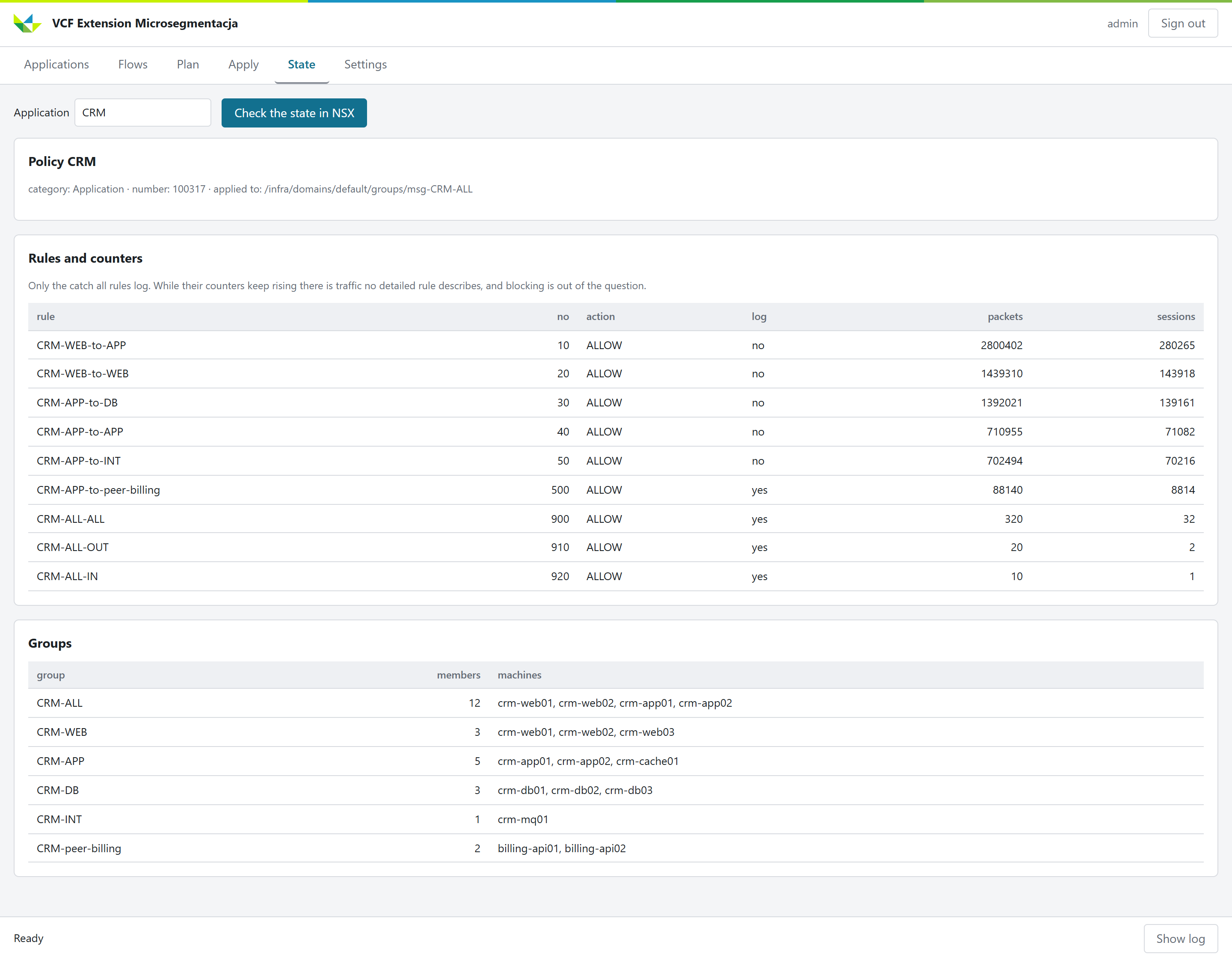
The State tab reads the live policy back from NSX: the rules with their packet and session counters, and the groups with their members. The catch-all counters are the readiness signal: while they keep rising there is traffic no detailed rule describes, so moving to blocking would break something; when they stop, the application is ready to enforce.
What the Management Pack adds
Once a policy is in place, the Management Pack picks it up in Aria Operations. It reads the DFW logs through Aria Operations for Logs and attributes every dropped and observed connection to the rule that produced it, so "who is this rule blocking" becomes a fact from the logs rather than a guess from configuration. It builds the same application view from the same tags, gives per-rule traffic and drop counters, and raises alerts on newly blocked traffic. The dashboards, objects and alerts it provides are described in the Overview.